Fleet Key Supply
KM100 EXPLORER Upgrade Credit
KM100 EXPLORER Upgrade Credit
Restore Your Tool's Software, Including All Keys Lost Functionality
Bring life into your diagnostic tool again! This service would be something you will need to Download the app HERE
When you finish the install process put your username in the textbox then pay for the credit
Watch these videos for help. Sorry for the lack of production we're just locksmiths.
KM100 Explorer | Read Me First
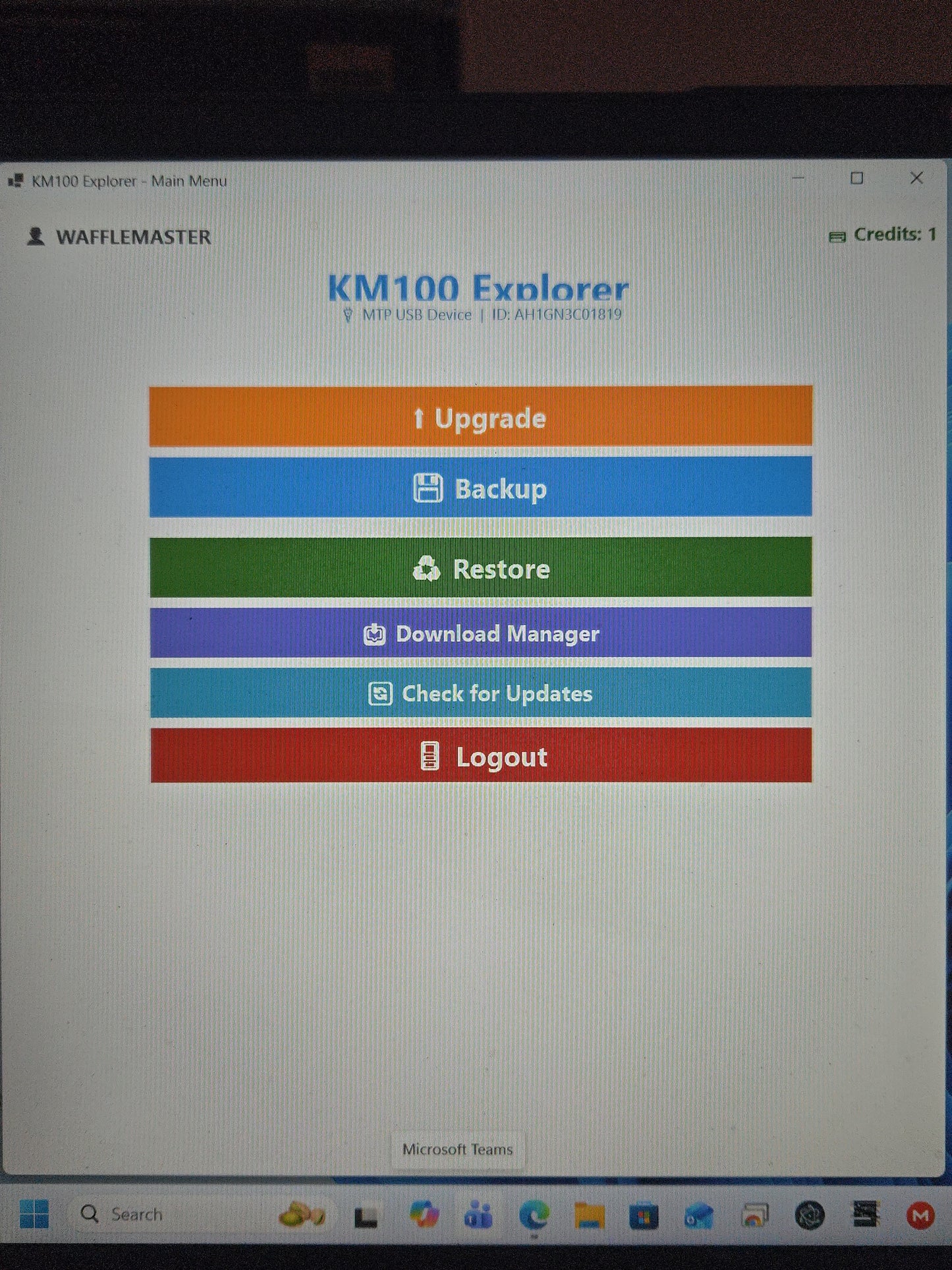
KM100 Explorer is a desktop utility designed for advanced file management and software restoration for immobilizer tools. This tool allows users to bypass software limitations, backup original data, and install custom software versions—including the unreleased Toyota AKL functions.
1. Initial Setup
- Installation: Simply place the KM100_Explorer.exe on your desktop.
- Account: Open the app and click Register at the bottom of the login screen to create your account.
- Device Prep: Ensure your KM100 (E/X) is fully updated with the latest system updates. You must have the Android Home Button visible at the bottom of your device screen.
2. Connecting to PC
- Cable: Use a high-quality USB-A to USB-C data cable only.
- Connection: Power on the device and plug it into your PC before logging into the app.
3. Essential: The Backup Process
CRITICAL: Always perform a full backup before modifying your device.
- Log in to the app and go to the Backup section.
- Click Connect at the top.
- Select your regions (Default is "All").
- Choose a Save Folder: It is highly recommended to name this folder after your device's Serial Number.
- Click Backup and wait for completion.
4. Installing the Helper APK
- In the app, go to Download Manager.
- Select KM100 Explorer APK and download it.
- Disconnect the KM100 from the PC.
- On the KM100: Swipe up, tap the Home Circle, open the Files app, and go to Downloads.
- Install KM100serial.apk and open it.
- Clear Tasks: Tap the "Two Boxes" icon (Recent Apps) and close all running applications.
5. Upgrading Software & Credits
- Reconnect the device to the PC and log in to the desktop app.
- The app will now detect your Serial Number; you may now purchase Upgrade Credits.
- Go to the Upgrades menu and select your desired brands.
- Click Upgrade Selected.
- Important: When the KM100 asks to delete existing files, select YES for each brand selected.
- Once finished, open the brand on the KM100 and tap Authorize. Ignore the software warning; this is expected with custom versions.
6. Additional Features
- Restore: Use this function to push your backed-up files back onto the device.
- Updates: Use the "Check for Updates" button regularly to ensure you have the latest version of KM100 Explorer.
- Pro Tip: After upgrading, perform a second backup. It is much faster to Restore these files later than it is to re-run the Upgrade process.
Couldn't load pickup availability
Share